Key points
A kiosk survey runs on one shared screen, such as an iPad at a booth or front desk, and lets person after person answer it.
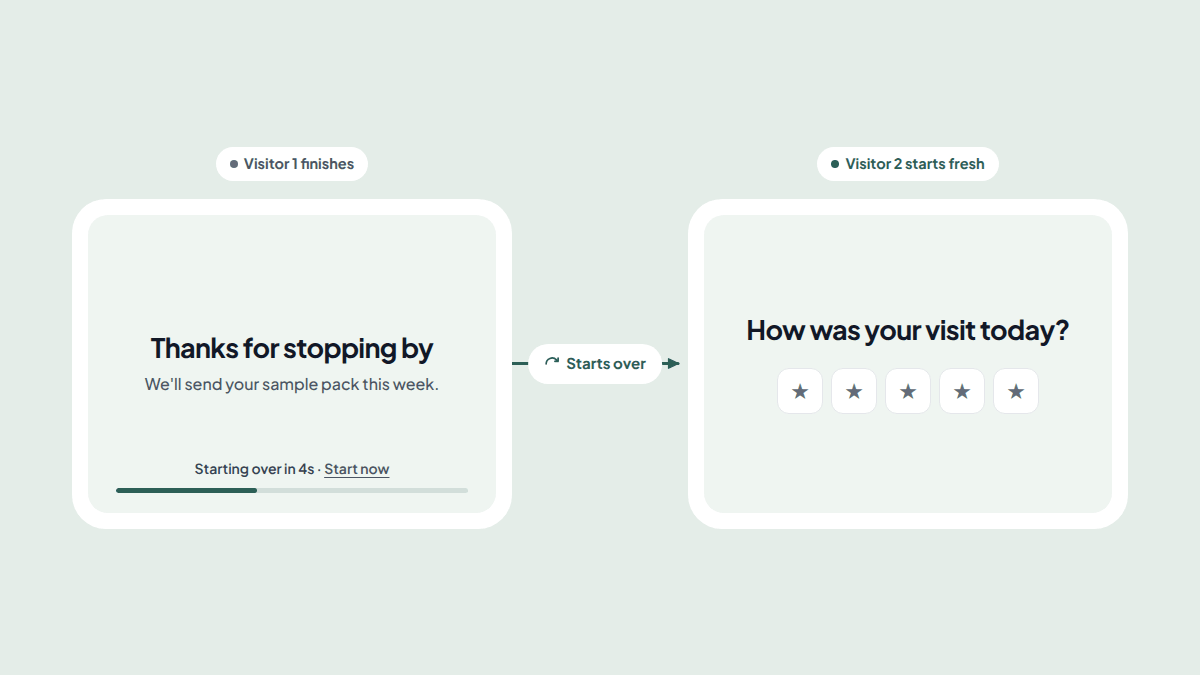
In Reuily, kiosk mode is one switch in a form's Settings. After each submission the form clears and starts over at its first page, 5 to 20 seconds later.
The next person never sees the last person's answers, and anyone can tap the screen to start over straight away.
Lock the tablet to the survey with Guided Access on an iPad or app pinning on Android, and keep it online and charged.
Short surveys work best on a kiosk. Ask three to five questions, put a rating first and keep contact details optional.
On this page
A kiosk survey lets one tablet collect answers from everyone who walks past your booth, reception desk or shop counter. The hard part is the reset: the survey has to be ready, and empty, for the next person.
If you want something to put on the tablet today, start with the customer feedback form, or the sign in sheet for a front desk. This guide shows how to turn either one into a kiosk survey that starts over by itself.
What is a kiosk survey?
A kiosk survey is a form that runs on one shared screen, such as an iPad at a booth, a desk or an exit, so many people can answer it one after another. When someone finishes, the survey clears their answers and goes back to the first question, ready for the next visitor.
Kiosk survey examples
- Trade show booth. Capture visitors' names, companies and interests while they wait for a demo.
- Reception desk. Replace the paper visitor book with a digital sign in sheet.
- Open house. Greet buyers with an open house sign in sheet and ask for feedback on the way out with the open house feedback form.
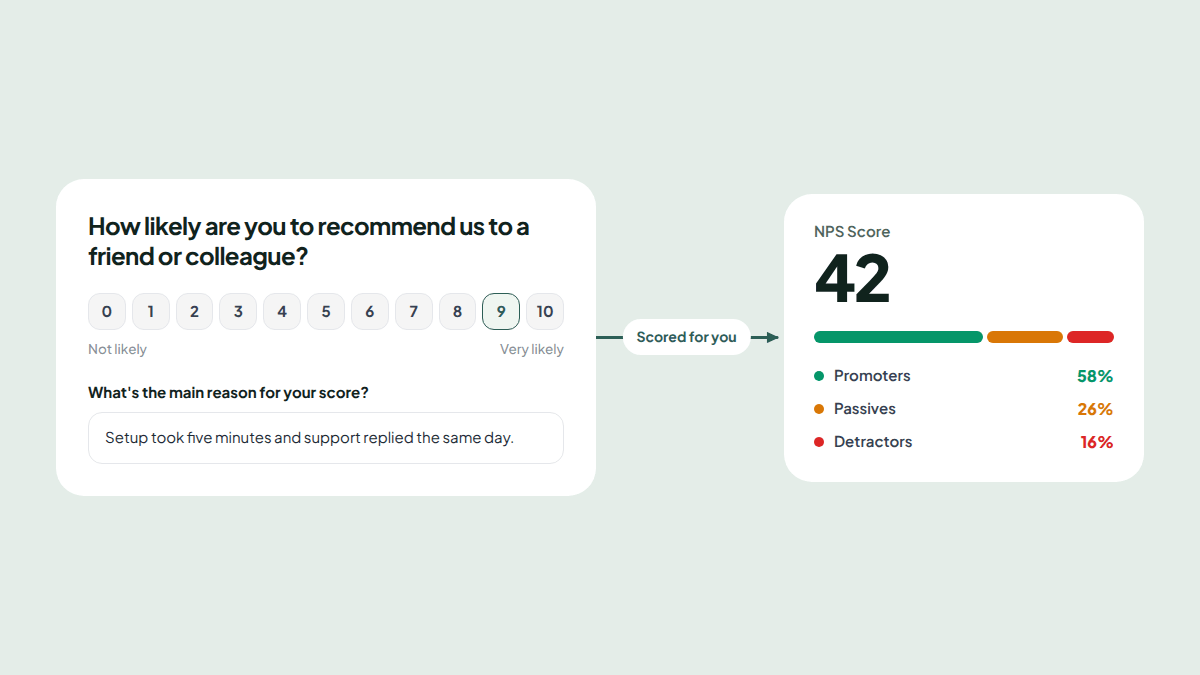
- Shop counter or exit. Ask how the visit went with a rating or an NPS question.
- Event check in. Let guests confirm their details on arrival with an event registration form.
How kiosk mode works in Reuily
Kiosk mode is a setting on the form, not a separate app. You open the form's normal link on any tablet, phone or computer with a browser.
After someone submits, they see your thank you page as usual. Below it, a quiet line reads "Starting over in 10s · Start now", and a thin bar along the bottom of the screen shrinks as the time runs out.
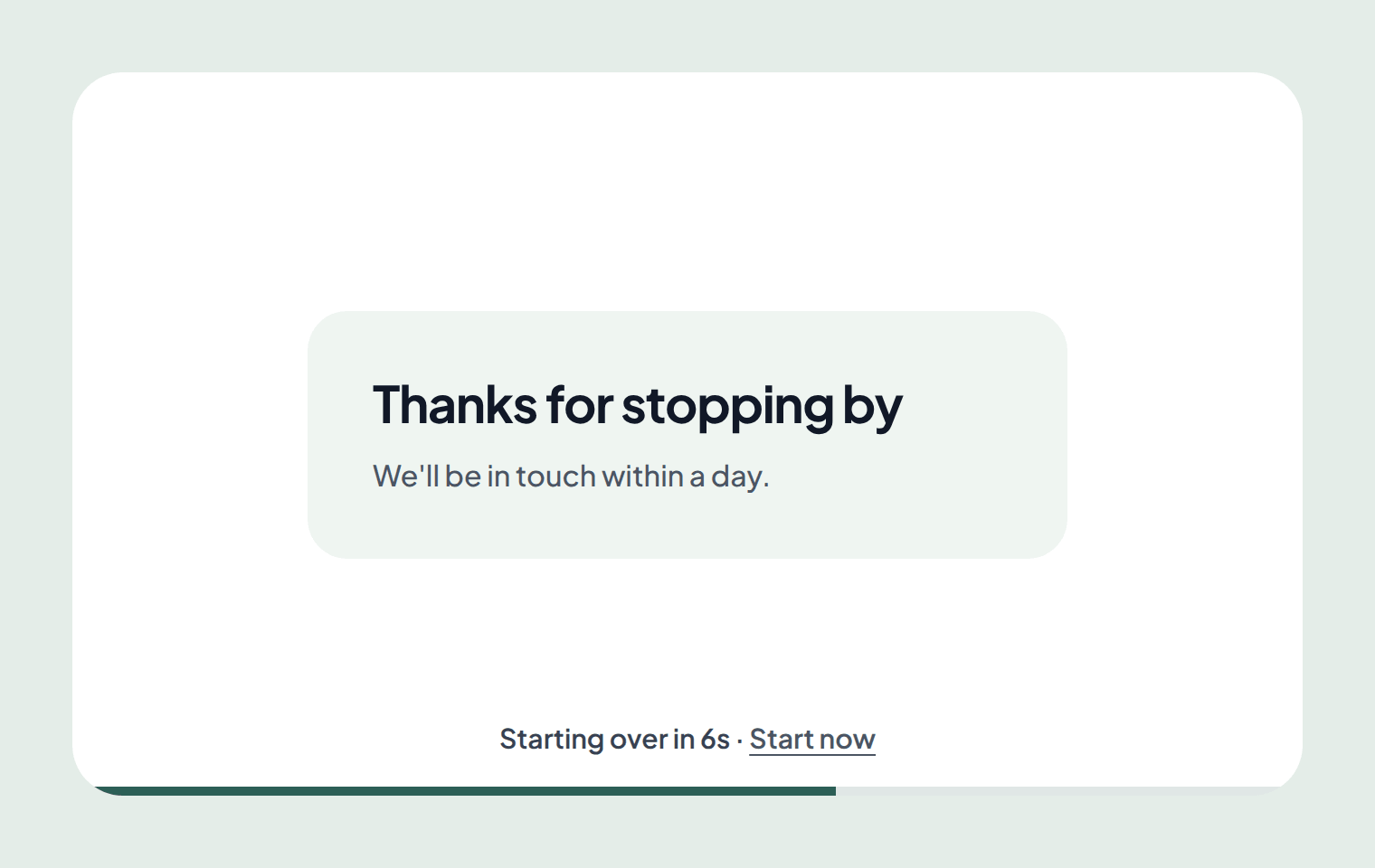
When the time is up, the survey reloads at its first page. Nothing from the person before is left behind: no answers, no half filled questions and no saved progress.
People don't have to wait for the countdown. Tapping Start now, or any empty part of the screen, starts the survey over at once. Buttons and links on your thank you page still work as normal.
How to set up a kiosk survey
You need a form and about two minutes. Kiosk mode is on the Business plan, so check your plan first.
1. Build or pick the survey
Start from the customer feedback template (opens in a new tab), or build from scratch (opens in a new tab). You can also describe the survey to Reuily's AI builder.
2. Turn on kiosk mode
- Open the form and choose Settings at the top.
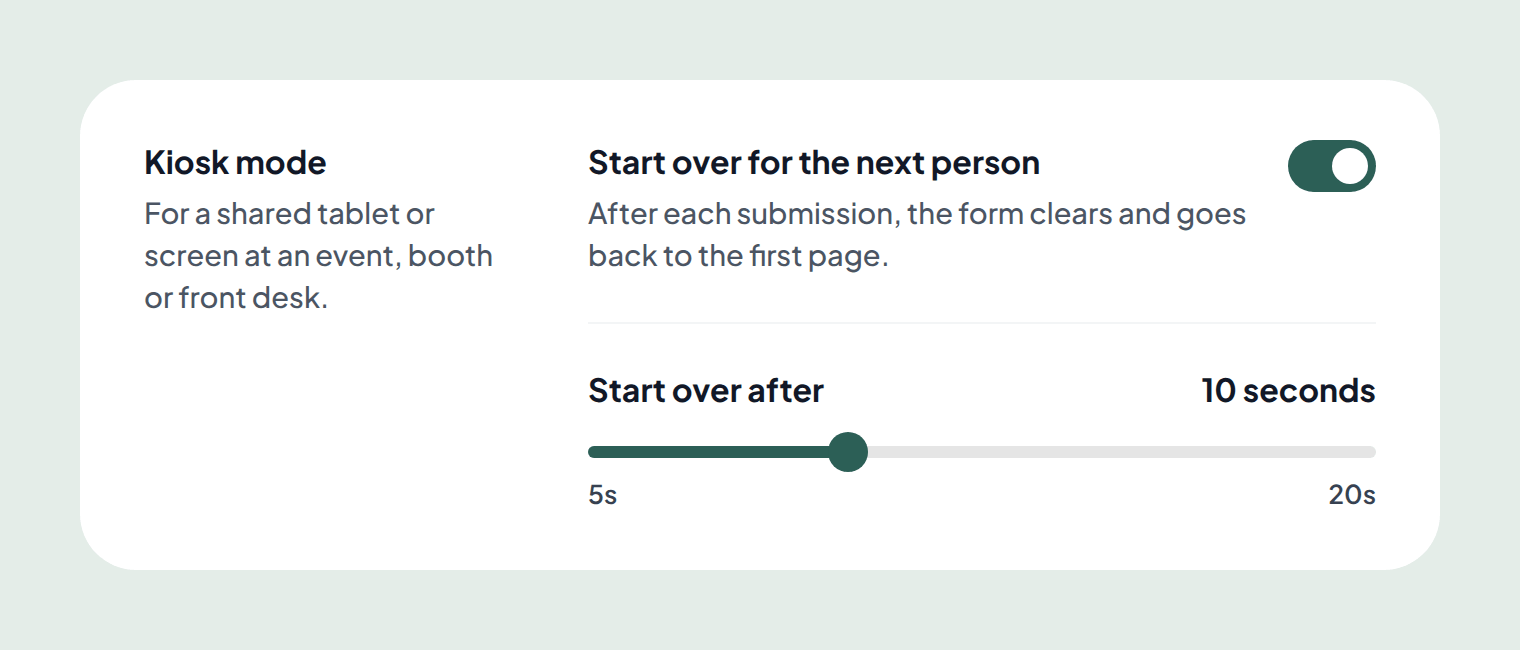
- Find Kiosk mode and turn on Start over for the next person.
- Drag Start over after to the number of seconds you want, from 5 to 20.
- Select Save.
3. Publish and open it on the tablet
- Go back to Build, choose Share and select Publish and continue.
- Select Copy link, then open that link in the tablet's browser.
- Send one test response and watch the survey start over.
To tell several tablets apart, add a source to each link, such as ?utm_source=reception or ?utm_source=booth. Each response then shows which screen it came from. The Tracking tab in Share builds these links for you.
How to lock the tablet to the survey
A browser can't stop someone from closing the tab or opening another app. The tablet itself can, and it takes a minute to set up.
- iPad. Turn on Guided Access in Settings, under Accessibility. Open the survey in Safari and press the top or side button three times to start it. The iPad then stays on the survey until you enter your passcode.
- Android. Turn on app pinning in Settings, usually under Security, then pin the browser while it shows the survey.
Also set the screen to never lock, keep the tablet on a charger, and check it is on WiFi or mobile data. The survey needs a connection to save each response.
Kiosk survey best practices
Keep it short
People answer a kiosk survey standing up, often with someone waiting behind them. Three to five questions is plenty, and one question per page keeps every tap obvious.
Start with the easiest question
Open with a rating, a yes or no, or an NPS question. A quick first tap gets people started without having to think.
Make contact details optional
Ask for an email last, and say what people get for it, such as a sample pack or a reply. A required email at the start can make people walk away before they answer anything.
Choose the right timer
- 5 seconds for a busy queue, where the next person is already waiting.
- 10 seconds for most places. It gives time to read your thank you message.
- 20 seconds when your thank you page has more to read, such as next steps.
Sort leads at a booth
At a trade show, a lead form can rate each visitor hot, warm or not a fit from their answers. Your team then follows up with the best leads first. Read more in how to improve lead quality.
Plan for people who walk away
The survey starts over after each submission. If someone leaves halfway, the next person sees where they stopped. Keep the survey short, and ask your team to reload the page if a half finished survey sits unattended.
Does Typeform or Jotform have a kiosk mode?
Typeform has no kiosk mode. Its community team has said the page has to be refreshed by hand after each person. A common workaround is to send the form back to itself with a redirect, which still leaves half finished surveys on screen.
Jotform's kiosk mode is part of its mobile app, not its web forms. Reuily's kiosk mode works in any browser, so the same link runs on an iPad, an Android tablet or a laptop. See how Reuily compares as a Typeform alternative or a Jotform alternative.
Next steps
- Put the customer feedback form or sign in sheet on your tablet.
- Compare plans on the pricing page, or see every feature.
- Score your kiosk answers with the free NPS calculator.
- Browse all templates for more ideas.
Frequently asked questions
What is a kiosk survey?
A kiosk survey is a form that runs on one shared screen, such as a tablet at a booth, desk or exit, so many people can answer it one after another. When someone finishes, the survey clears and goes back to the start for the next person.
How do I put a survey in kiosk mode on an iPad?
In Reuily, open the form's Settings, turn on Start over for the next person under Kiosk mode and choose how long the ending stays up. Publish the form, open its link in Safari on the iPad, then turn on Guided Access so visitors can't leave the survey.
Can Google Forms run as a kiosk?
Not on its own. Google Forms can show a Submit another response link, but someone has to tap it, and the survey never resets by itself. Kiosk setups with Google Forms usually rely on a separate kiosk browser app.
Does a kiosk survey work offline?
Reuily surveys need an internet connection to load and to save each response. At a venue with weak WiFi, use a phone hotspot or a tablet with mobile data, and test a response before visitors arrive.
How long should a kiosk survey wait before it starts over?
Ten seconds suits most places. It gives people time to read the thank you message without leaving it up for the next person. Choose 5 seconds for a busy queue, or up to 20 when the ending has more to read.
Which Reuily plans include kiosk mode?
Kiosk mode is part of the Business plan, and Enterprise includes it too. Every plan can build the survey itself, with unlimited forms and responses.